
Home/Download
Uchiyomi for Windows and Mac
A program for your own computer, in beta. On first launch it asks how you want to use it: the whole app on this computer, with no Docker, no server and no account, or a window onto the Uchiyomi server you already run.
Newest version: v0.45.0 · 24 September 2026
Download the file for your computer
These links always lead to the newest version.
Not sure which Mac? Open the Apple menu → About This Mac: Chip means
Apple silicon, Processor means Intel
(Apple).
On the release page
you will also see .zip, .blockmap and latest.yml files and the same
installers with the version in their names: those are for the app’s own updater, and you need none of
them. If a link above says Not Found, a new version is being published that moment — try again
in an hour, or take the file from the release page.
Your browser may say the file isn’t commonly downloaded, because the app is new and not signed yet. Keep it (in Edge: the … menu beside the download → Keep → Keep anyway). There is no Linux or Windows on Arm build: use the server install there.
The first launch on Windows
- Run Uchiyomi-Setup.exe. There is no wizard and no administrator prompt; it installs for your account and opens Uchiyomi when it is done.
- The first time, SmartScreen shows “Windows protected your PC”: choose More info, then Run anyway. Windows does this for a file with no download reputation yet (Microsoft).
Smart App Control blocks it outright. With it turned on, Windows refuses every unsigned program, and Microsoft says there is “currently no way to bypass Smart App Control protection for individual apps” (Microsoft). On that PC, run Uchiyomi as a server instead, or open your server in a browser.
The first launch on a Mac
- Open the dmg and drag Uchiyomi onto Applications.
- Open Uchiyomi. macOS refuses the first time: choose Done, not Move to Trash.
- Open System Settings → Privacy & Security, scroll to Security and click Open Anyway beside the message about Uchiyomi. It is there for about an hour after you tried to open the app.
- Confirm with Open and your login password. From then on it opens with a double-click.
On macOS 14 and older, Control-click Uchiyomi in Applications, choose Open, then Open again. Since macOS 15 that shortcut no longer lets an unsigned app through, and Open Anyway is the way (Apple: opening an app from an unknown developer, safely open apps).
Choose how to use it
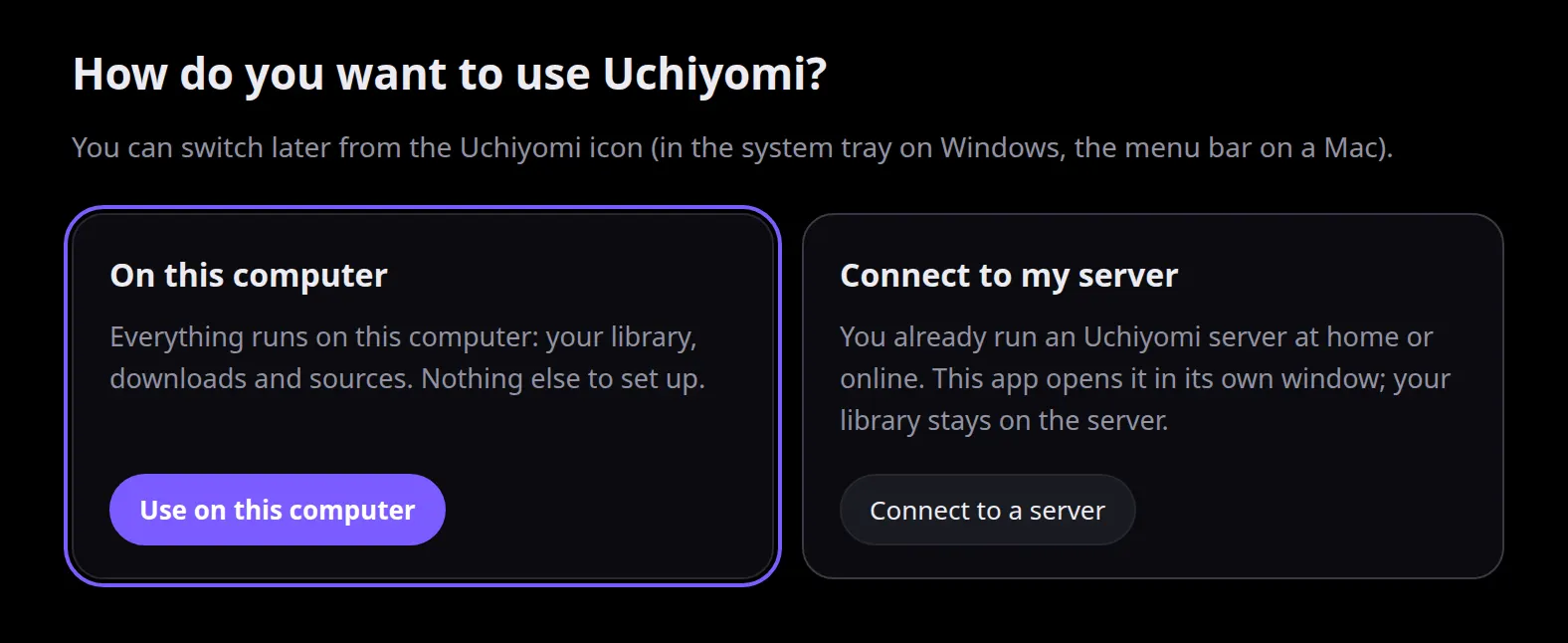
- On this computer — for when you don’t run a server. Your manga lives in a folder on this PC or Mac, and everything runs here. Closing the window keeps it in the tray or menu bar, so new chapters still arrive.
- Connect to my server — for when you already run Uchiyomi on a NAS, a home server, Unraid or Umbrel. The app is a window onto it; nothing runs on the computer and your library stays on the server.
An install that chose a library folder in v0.44.0 is not asked: it opens as before.
On this computer
First, the folder your downloads go to — ordinary files you can see and back up. The default is
Uchiyomi Library in your home folder; a folder a cloud service syncs (OneDrive, iCloud Drive,
Dropbox) gets a warning.
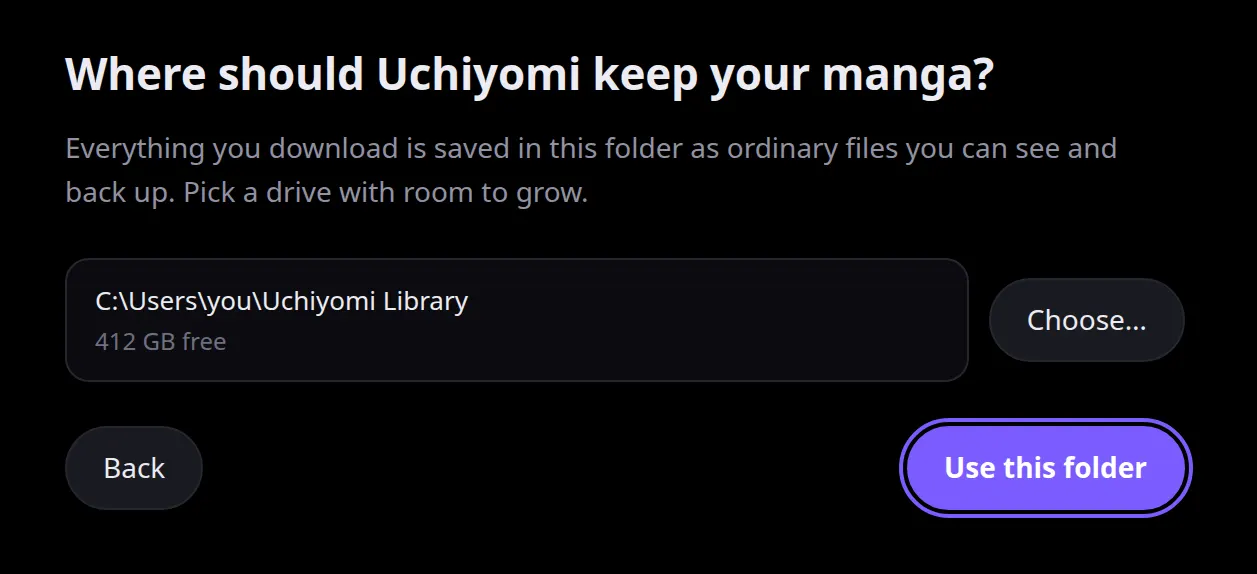
Then it opens already signed in, on an empty library. Add somewhere to read from:
- MangaDex works straight away: search for a title under Discover.
- A site by its address: Admin → Providers → Add a site.
- Mihon / Tachiyomi extensions: Admin → Extensions offers the extension engine, a one-time download of about 200 MB, then you add an extension repository.
What it leaves out is what exists only for other people and other devices: accounts and passwords, members, OPDS and API tokens. For those, run a server and use Connect to my server.
Connect to your server
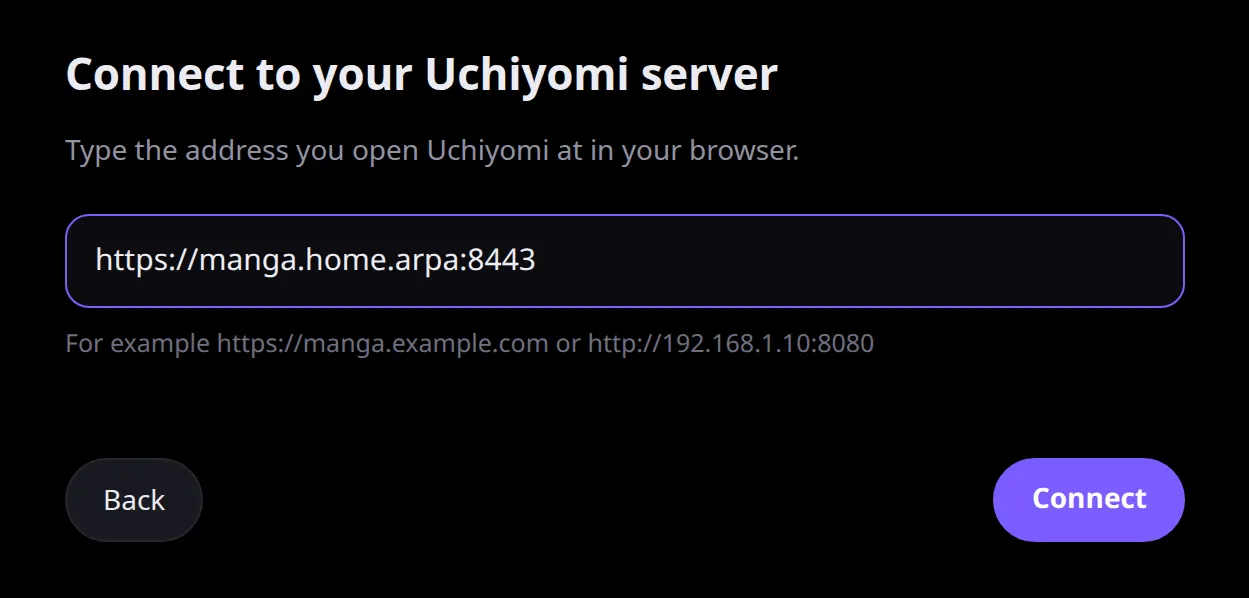
Type the address you open Uchiyomi at in your browser — for example
https://manga.example.com or http://192.168.1.10:8080 — and
choose Connect. Uchiyomi checks that a server answers there and opens it; you sign in on your
server’s own page, and every tab is your server’s.
- Plain
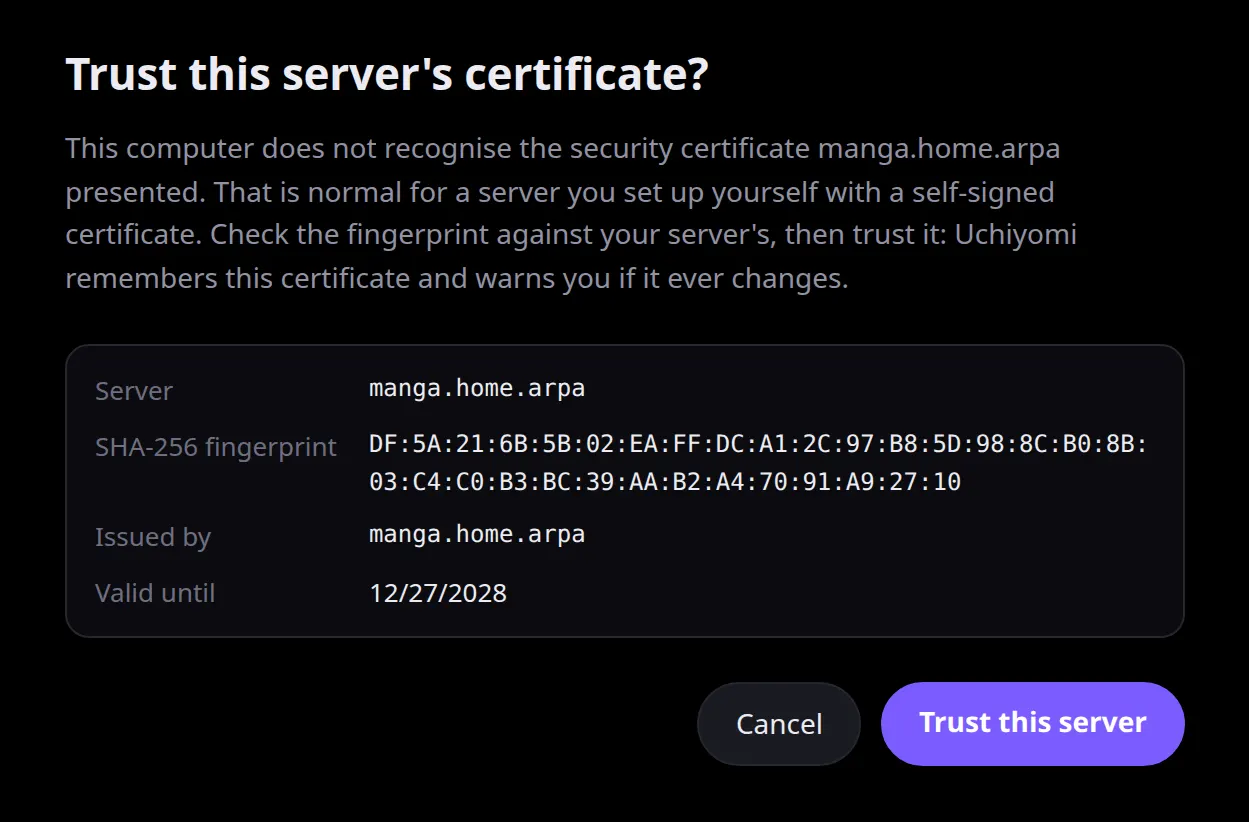
http://works, but chapters cannot be saved for offline reading over it; an https address is recommended. - A self-signed certificate is asked about once. Compare the fingerprint with your
server’s (
openssl x509 -in cert.pem -noout -fingerprint -sha256) and trust it; if that server ever presents a different certificate, you get a loud warning rather than a silent connection. - Sign-in portals and single sign-on work in the window. A proxy’s own password prompt (HTTP Basic Auth) does not, yet.
- Closing the window quits: nothing runs locally. Switch server, go back to on this computer, or forget a server from the icon’s menu.
Updates
- Windows downloads a new version in the background and installs it when you quit Uchiyomi, or at once from Restart to update in the tray menu.
- A Mac cannot update an unsigned app by itself. The menu-bar icon says when a new version is out and links to it: quit Uchiyomi from that icon, drag the new one onto Applications, and replace the old one. Your library, settings and server choice are kept.
Or run it as a server
For a household, reading on phones, OPDS readers or a library that updates while your computer is off, run Uchiyomi on something that stays on, and use the desktop app’s Connect to my server to read from it on a computer:
- Docker — two commands, database included: the self-host guide.
- Unraid — search for uchiyomi in Community Applications.
- Umbrel and CasaOS — packages in the repository, described in the install guide.
Everything else about the desktop app — backups, where files live, uninstalling, what each message means — is in the desktop guide.