
Home/Extensions
Add an extension repository
Uchiyomi runs the same extensions as Mihon and Tachiyomi, but it ships none and has no repository built in. You add the repository you trust, once — the same address you use in Mihon — and its extensions are one click each from then on.
The extension engine comes first
Extensions are Android code, so they run in a separate program, the extension engine. Where it comes from depends on how you run Uchiyomi:
- Docker (the standard install): it is already there, in the
uchiyomi-suwayomicontainer, and starts with the rest. - The Windows or Mac app, on the computer: Admin → Extensions offers it as a one-time download of about 200 MB (desktop app).
- The Windows or Mac app, connected to your server: it is your server’s; nothing to do on the computer.
- CasaOS, Umbrel, Unraid: not in those packages; add the engine container from the standard compose file, as the extensions guide explains.
It uses about 750 MB of memory once running. When it is ready, Admin → Extensions shows a green
ready badge.
What a repository is
An extension repository is a list of extensions that someone publishes, as a small file on the web. Mihon, the Tachiyomi forks and Uchiyomi all read the same format, so the repository you use in Mihon is the one to add here. Uchiyomi never suggests one: which repository you trust is your call, and what you read through it is your responsibility.
Find its address
A repository’s address usually ends in index.min.json:
https://example.org/repo/index.min.json
- In Mihon: More → Settings → Browse → Extension repos lists the ones you already added. Copy the address from there.
- On the repository’s own page, which usually shows its address, or an Add to
Mihon button. That button is a link like
mihon://add-repo?url=…: copy the link (right-click → Copy link) and paste it as it is. Uchiyomi takes the address out of it.
Add it
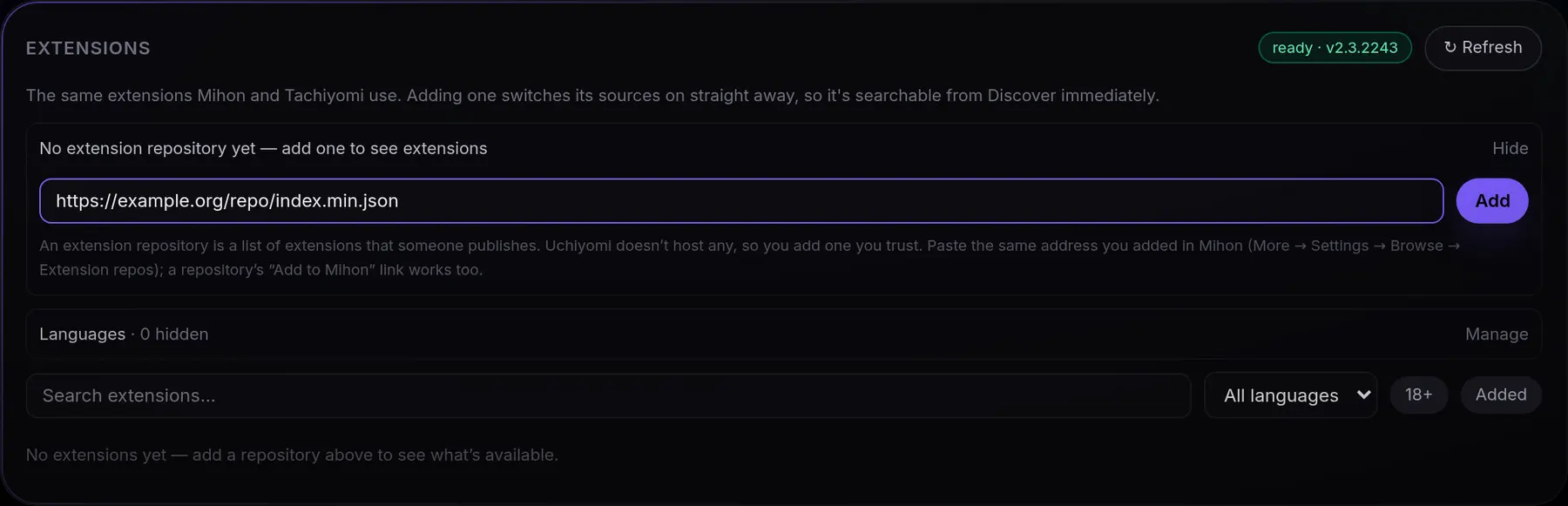
- Open Admin → Extensions. With no repository yet, the repository row is already open, with an address field.
- Paste the address and press Add. It reads Checking… for up to a minute while the engine reads the repository.
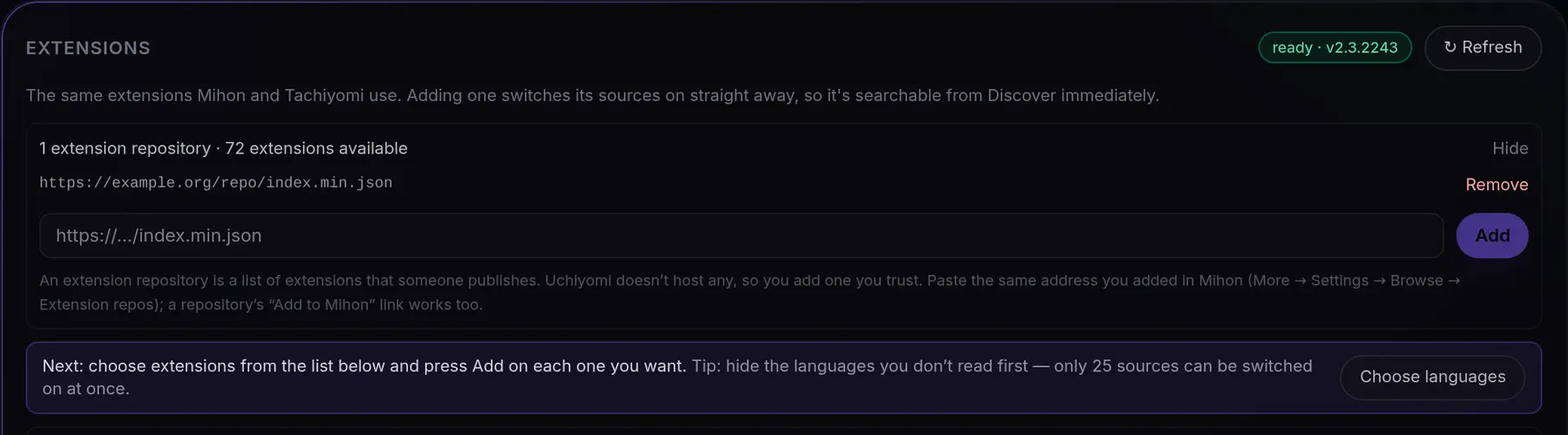
- Added — {n} extensions from this repository. The count is what this repository
brought, and the repository now shows in the row. After the extension engine restarts, the row may show
…/repo.json(orindex.pb) instead of theindex.min.jsonyou pasted. It is the same repository.
What you can paste: the index.min.json address, an Add to Mihon link
(mihon://, tachiyomi:// or a web link ending /add-repo?url=…), an address
without https:// (it is added), or a link to the file on GitHub
(…/blob/<branch>/index.min.json, turned into the raw file). A GitHub repository
page is refused: it is a web page, not the list.
What the messages mean
A refusal also stays in red under the field until you change the address.
- “That doesn’t look like a repository address.” Not a web address, or not http/https.
- “That is a GitHub page, not the repository itself.” Find the
index.min.jsonlink instead — often behind the Add to Mihon button. Uchiyomi never guesses a branch. - “That repository is already added.” Case, http or https, a trailing slash or the file name make no difference.
- “That address gave no extensions, so it was not kept.” Nothing new arrived.
For an
index.jsonor a folder address, Uchiyomi also tried theindex.min.jsonthere, the only file the engine reads a list from. It was not saved, so there is nothing to remove. - “The extension engine refused that address” or “Could not reach the extension engine”, with the reason. Nothing was changed. Check that the engine is running (step 1).
To take a repository out, open the row with Manage and press Remove beside it. A removed repository stays removed.
Choose your extensions
Hide the languages you don’t read first (Choose languages). A multi-language extension brings one source per language, and only 25 extension sources can be switched on at once, because every one of them is searched together. A hidden language stays hidden for the next extension you add.
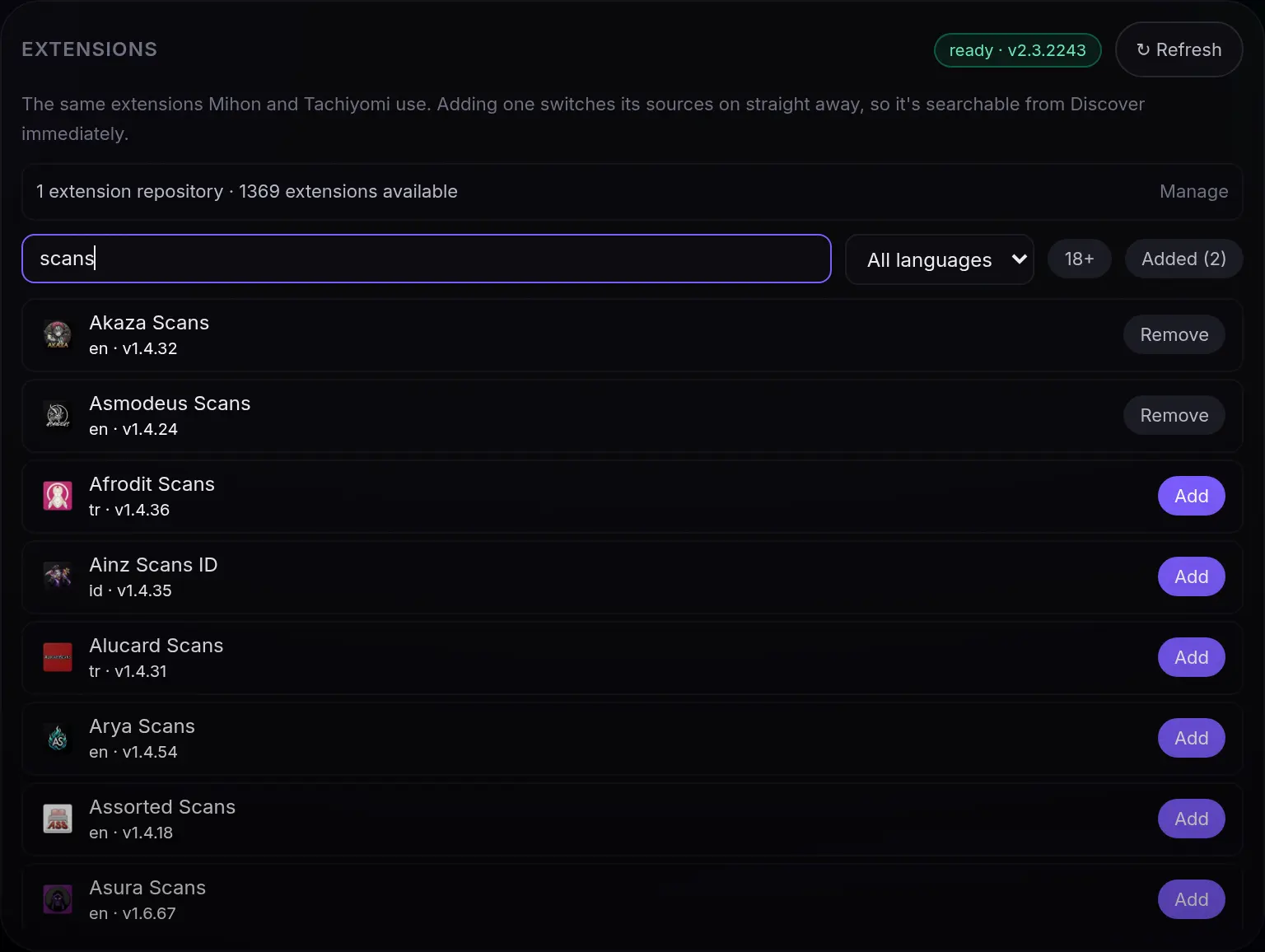
Then search the list and press Add on each extension you want. Its sources switch on at once and are searchable from Discover straight away. Adult extensions stay hidden until you tap 18+, and installed ones are kept up to date on their own.
The full reference — automatic updates, the engine’s settings, and reading your Uchiyomi library from Mihon the other way round — is in the extensions guide.