
Home/Self-host guide
Self-host
How to run your own manga server
Docker Compose, an existing folder of comics, and about ten minutes. This walks through the file line by line, then the two things people actually get stuck on: what counts as a series, and why logins do not stick behind a reverse proxy.
You will be installing: v0.40.0 · 22 September 2026 · Discover answers progressively
1. What you need
- Docker and Docker Compose. Any host that runs them: a NAS, a mini PC, a VPS, a Raspberry Pi 4 or 5. Images are built natively for amd64 and arm64, so nothing is emulated.
- About 1 GB of RAM for the app and its database, plus 2 GB for the Cloudflare solver and roughly 1 GB for the optional extension engine if you want either. The app itself sits near 300 MB on a library of 240 series and 43,000 chapters.
- A folder of comics — or none. CBZ, CBR, PDF, image EPUB or plain folders of images. Starting empty and letting Uchiyomi fetch is a valid way to begin.
You do not need to install Postgres, generate a secret, or write a config file.
2. The two commands, and what they do
curl -O https://raw.githubusercontent.com/AngeloSha/uchiyomi/main/deploy/docker-compose.yml
docker compose up -d
That brings up three containers: uchiyomi (the app, its API and Postgres, all in one
image), uchiyomi-flaresolverr (the Cloudflare solver) and
uchiyomi-suwayomi (the extension engine). The last two are optional and clearly marked
in the file; delete them if you only want a reader.
Open http://localhost:8080 and create your admin account in the browser. There is no default password to change.
Do not clone the repository to install it. The top-level
docker-compose.ymlin the repo builds from source and is the development stack; the file you just downloaded fromdeploy/is the install.
3. The settings worth knowing
Everything is optional and lives in a .env file next to the compose file. These are
the ones that matter:
# where your existing comics are. Mounted READ-ONLY unless PUID/PGID say otherwise.
LIBRARY_PATH=/mnt/media/manga

# the address you will actually open. Get this wrong and logins will not stick.
PUBLIC_ORIGIN=http://192.168.1.10:8080

# run as the owner of your library, so renames and deletes work. Unset = uid 10002, read-only.
PUID=1000
PGID=1000

# the host port, if 8080 is taken
WEB_PORT=8080

# nightly backups to keep
BACKUP_KEEP=14
LIBRARY_PATH— your comics. Anything Uchiyomi downloads goes to a separate volume, never in here, so your existing library is not reorganised.PUID/PGID— leave them unset and the app runs as uid 10002 with your library read-only, which is the safe default. Set them to the owner of your files if you want Uchiyomi to be able to rename folders or delete chapters.PUBLIC_ORIGIN— see step 6. This is the single most common cause of a working install where nobody can stay logged in.- No
DATABASE_URL— its absence is the switch. Leave it out and Postgres runs inside the container; set it and the embedded one never starts.
4. What counts as a series
You do not have to reorganise anything first. The rule is one line:
A directory is a series when it directly contains chapters — at whatever depth it happens to sit.
So all of these scan correctly, with no configuration:
manga/
  Solo Leveling/                 # series
    Chapter 1.cbz
    Chapter 2.cbz
  Manhwa/Korean/Omniscient Reader/   # series, three levels down
    ch-001.cbz
  One Piece/                     # series, with a cover beside the chapters
    cover.jpg
    Vol. 1/                      # and a folder of loose images is a chapter too
      001.jpg
      002.jpg
Layouts written by Mihon, Komga, Kavita and Tranga are all recognised as they are. A
cover.jpg sitting beside the chapters is understood as the series cover rather than
mistaken for a chapter. Metadata you edit in the app survives a rescan, and if you rename a folder
on disk Uchiyomi recognises the series rather than creating a duplicate.
5. First run, and adding a source
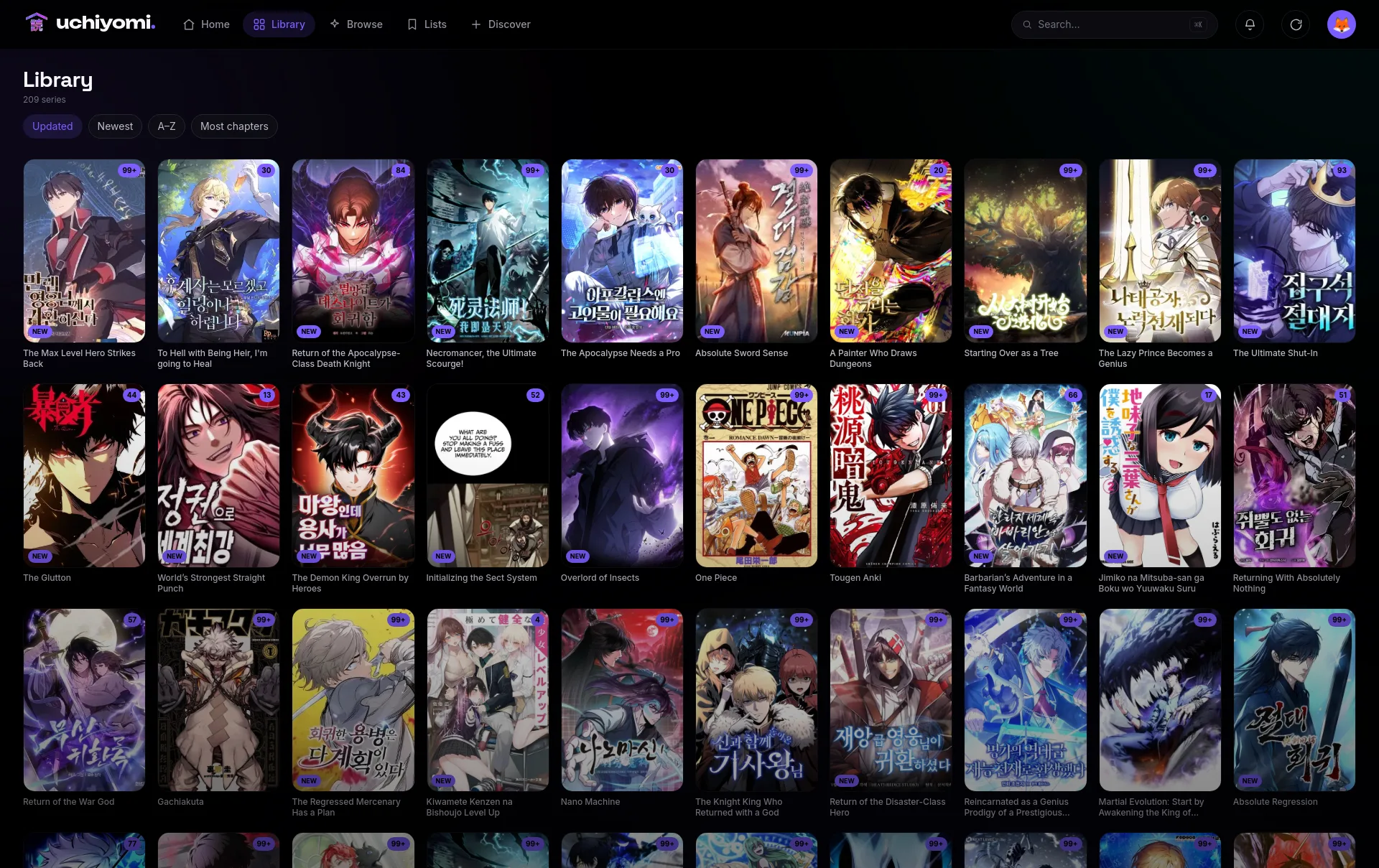
Create the admin account, then point Uchiyomi at your library folder and let it scan. If you only want a reader for files you own, you are finished here.
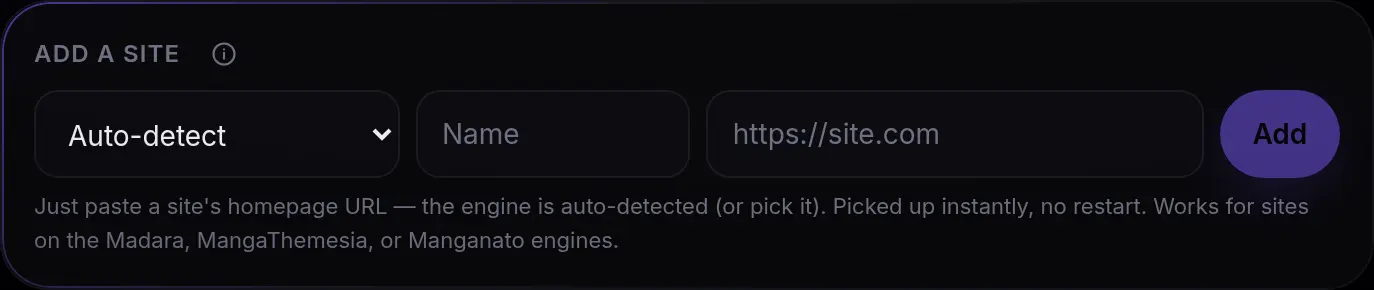
To let it fetch as well, there are three routes, and none is enabled until you choose it:
- An extension repository. In the admin panel, add a Mihon/Tachiyomi extension repository you trust. From then on its catalogue — around 1,400 extensions — is browsable and installable with one click, and searchable straight away. Uchiyomi ships no extensions and no default repository.
- Paste a site's URL. Built-in generic engines cover the common site families (Madara, MangaThemesia, Manganato), so many sites work from the address alone.
- MangaDex, through its official public API, works with nothing to set up.
6. Behind a domain, with HTTPS
The compose file is standalone: it publishes a local port and creates its own private network. To
put it on a domain, front it with any reverse proxy — Caddy, Traefik, Nginx Proxy Manager
— and point that proxy at uchiyomi on port 3000.
If your proxy reaches containers over a shared Docker network, drop a
docker-compose.override.yml next to the compose file; Compose loads it automatically:
# docker-compose.override.yml — server-specific; keep it out of git
networks:
  proxy:
    external: true
services:
  uchiyomi:
    networks: [uchiyomi_app, proxy]   # keep uchiyomi_app: it is how the app reaches the solver
Then set PUBLIC_ORIGIN to the URL you type in the browser, exactly
— scheme, host and port. The session cookie is bound to it, so if it says
http://localhost:8080 while you are opening
https://manga.example.com, the login page will accept your password and then bounce
you straight back to it, with nothing in the logs that looks like an error. It is the most common
"it is broken" report and it is a one-line fix.
Once the proxy reaches the app over a Docker network you no longer need the published host port.
Deleting the ports: entry stops the app also being served over plain HTTP beside your
HTTPS domain.
7. Backups
Uchiyomi backs itself up. Every night it writes a compressed dump of the database plus an archive
of your config to /backups, keeping the last fourteen, at an hour you choose. You can
run it on demand from the admin panel, which shows the last run's time and size.
Map /backups to a real path — ideally on a different disk from the database
— with BACKUP_PATH. Worth doing once, on any install, to prove the image can
actually dump rather than trusting the panel:
docker compose exec uchiyomi pg_dump --version
No output means it cannot, whatever the panel says.
8. Upgrading
docker compose pull
docker compose up -d
Accounts, reading progress, downloads and settings live in named volumes, and the database migrates itself on boot, so upgrading in place is safe. Uchiyomi checks GitHub's public releases page once a day and tells you in the admin panel when there is something newer; it sends nothing about your server and you can switch it off. Every version and what changed is on the changelog.
9. When something is wrong
- Logins do not stick.
PUBLIC_ORIGINdoes not match the address you are opening. See step 6. - The scan finds nothing. Check the container can see the files:
docker compose exec uchiyomi ls /library. An empty listing is a mount problem, not a scanner problem. - Renames or deletes fail. The library is mounted read-only because
PUID/PGIDare unset, or they do not match the owner of the files. - An extension source fails every search with a Cloudflare message. The extension engine needs the solver introduced to it; the shipped compose files already do this, so it usually means a hand-written compose file is missing those two lines.
- The solver has grown to gigabytes. Known FlareSolverr behaviour over long
uptimes. The shipped file caps it at 2 GB with
restart: unless-stopped, which turns the leak into an automatic restart. - Chapters download short. Uchiyomi keeps a chapter that is missing a few pages as a partial, with placeholders where the pages go, and retries them overnight rather than throwing the chapter away.
Still stuck? Discussions for questions, issues for bugs.
10. NAS and one-click stores
Unraid: search for uchiyomi in Community Applications and install it from the Apps tab. CasaOS: import the manifest from the repository as a custom app. Umbrel: a package is in the repository while the App Store submission is open. Synology, TrueNAS, a Pi: the two commands above. Full install guide →